
Product docs and API reference are now on Akamai TechDocs.
Search product docs.
Search for “” in product docs.
Search API reference.
Search for “” in API reference.
Search Results
results matching
results
No Results
Filters
Deploy Zot as a Pull Through OCI Cache for Docker Hub
Traducciones al EspañolEstamos traduciendo nuestros guías y tutoriales al Español. Es posible que usted esté viendo una traducción generada automáticamente. Estamos trabajando con traductores profesionales para verificar las traducciones de nuestro sitio web. Este proyecto es un trabajo en curso.
A wide range of internet services, embedded software, and other applications are packaged and run with containers. Many tools have been developed around the container ecosystem, and a common standard known as Open Container Initiative (OCI) facilitates interoperability between these tools.
Container images need to be stored and then distributed when an application is deployed. This guide explores storage and distribution of OCI container images with Zot. In particular, this guide shows how to set up Zot as a cache for images stored on Docker Hub. By setting up your own container cache, you can reduce latency and avoid rate limits of public container registries.
What is Zot?
Zot is a vendor-neutral OCI-native registry. It can run on different types of hardware ranging from embedded devices to high-power cloud compute instances. Some key benefits of Zot include:
- Security integrations including Single Sign-On (SSO) support with OpenID Connect (OIDC), htpasswd, and API keys
- An authorization system that supports repository-level access control
- Built-in artifact scanning with Trivy
- Support for multiple backends for storing data, including S3-compatible services
- Options for creating high-scale deployments
- Monitoring with built-in metrics
- A Web-based user interface and a command line interface for interacting with these features
- An application binary that has no dependencies and that can be run as a standalone executable, or by container tools
While this guide focuses on how to configure and use Zot as a pull through cache for Docker Hub, you can also directly upload images to the Zot registry with this same deployment.
Before You Begin
The instructions in this guide install Zot on a compute cloud instance, and these specifications are assumed:
- At least 4GB of memory
- Ubuntu 24.04 LTS as the operating system. systemd is used to run Zot as a service in this guide. Other distributions that use systemd may also be suitable for following the instructions.
To create a compute instance on Akamai Cloud, follow the Get started and Creating a Linode guides.
Follow the Set up and secure a Linode guide to create a limited user to run commands under. Configuring a firewall is also recommended.
On startup, Zot downloads some large artifacts for the image scanning feature (approximately 1GB in total). Ensure your instance’s internet connection is not metered or has the necessary allowance to download these artifacts.
Note Inbound traffic to Akamai compute instances is free.This guide makes use of htpasswd for authentication, which is part of the
apache2-utilspackage on Ubuntu. Install this package on your compute instance:sudo apt install apache2-utilsThis guide uses podman to work with OCI container images. This needs to be installed on the client you wish to download images to (for example, your computer that you are reading this guide on). Podman does not need to be installed on the instance where Zot is deployed.
TLS is enabled for the registry in this guide. Two requirements need to be met to enable TLS:
A domain name needs to be assigned to the IP address of the compute instance. If you use Akamai’s DNS Manager, assign a domain, or a subdomain, to your instance’s IP. If you use another DNS provider, like your domain registrar’s DNS management, use that service to create the DNS record.
Ensure you have generated a set of certificates for the server to use. To learn more about SSL certification, review the Understanding TLS Certificates and Connections guide. Free certificates are available from the Let’s Encrypt authority, and you can use Certbot to get a certificate. If using Certbot, the
--standaloneoption can be used, because no web server proxy is set up in this guide.
sudo. If you’re not familiar with the sudo command, see the
Users and Groups guide.Deploy Zot
This section walks through the process of configuring Zot as a pull through cache for Docker Hub and creating a systemd service to run and manage the application.
Create a Linux User and Directories for Zot
Create a dedicated Linux user for Zot:
While it is optional to have a dedicated user for the Zot service, it is recommended to create one with only the minimum permissions that it needs. Run the
addusercommand to create azotuser:sudo adduser --no-create-home --gecos --disabled-password --disabled-login zotYou should see output similar to this:
info: Adding user `zot' ...
info: Selecting UID/GID from range 1000 to 59999 ...
info: Adding new group `zot' (1001) ...
info: Adding new user `zot' (1001) with group `zot (1001)' ...
info: Not creating home directory `/home/zot'.
info: Adding new user `zot' to supplemental / extra groups `users' ...
info: Adding user `zot' to group `users' ...
Create directories to store Zot data:
In this guide, the following directories are used to store Zot-related data:
Path Directory Type /data/zotData directory /var/log/zotLog directory /etc/zotConfig directory Run these commands to create the directories and assign the correct permissions:
sudo mkdir -p /data/zot
sudo chown -R zot:zot /data/zot

sudo mkdir -p /var/log/zot
sudo chown -R zot:zot /var/log/zot

sudo mkdir -p /etc/zot
sudo chown -R zot:zot /etc/zot
Identify the Right Zot Build to Use
Zot builds are all published on the project’s GitHub Releases page. There are builds for different CPU architectures and platforms. For this guide, the machine platform is Linux and the CPU architecture is amd64.
Zot is also built in 2 flavors: a “normal” version and a minimal version. The builds for the minimal version have a suffix of -minimal. The minimal version is intended for systems where only the OCI registry functionality is required. The normal version includes more features, such as the UI, container scanning, etc. This guide will use the normal build.
Therefore, for this guide, the binary of choice is zot-linux-amd64.
Download the Zot Binary
On your compute instance, download the Zot binary to the
/tmpdirectory:wget https://github.com/project-zot/zot/releases/download/v2.1.14/zot-linux-amd64 -O /tmp/zot-linux-amd64Note The above command downloads the version 2.1.14 binary, which is the latest at the time of publication for this guide. You should update this command with the URL for the latest binary that is available on https://github.com/project-zot/zot/releases.To verify the authenticity of the binary, use the corresponding SHA256 checksum. Run these commands to download the checksum and use the
sha256sumprogram to compare it with the binary:wget https://github.com/project-zot/zot/releases/download/v2.1.14/checksums.sha256.txt -O '/tmp/checkums.sha256.txt' cd /tmp cat './checkums.sha256.txt' | grep 'zot-linux-amd64$' | sha256sum -cNote When running the above commands, update the URL of the checksum text file to match the version of the binary you downloaded in the previous step.If the checksums match, this output appears:
zot-linux-amd64: OKMove the binary under
/usr/bin/and make it executable, then give thezotuser and group ownership over it:sudo mv /tmp/zot-linux-amd64 /usr/bin/zot sudo chown zot:zot /usr/bin/zot sudo chmod +x /usr/bin/zot
Login Security
To protect logins for Zot, an authentication mechanism is required. There are multiple ways to authenticate to Zot, but for simplicity, this guide will use htpasswd.
The following command creates an htpasswd file which Zot can be configured to use. It populates it with a new user for Zot named testuser and a password of test123:
sudo htpasswd -bBc /etc/zot/htpasswd testuser test123test123 with a more complex, unique, robust password.This output should appear:
Adding password for user testuserConfigure Zot
Zot uses a single configuration file that contains all the required configuration for the application. The examples directory in the Zot GitHub repository has helpful example files that can used for various kinds of setups.
For this guide, a simple setup with UI, security scanning, and password authentication is appropriate. Follow these steps to populate the configuration:
On your compute instance, create a file named
/etc/zot/config.jsonand open it in a text editor.Specify the OCI Distribution Specification version that Zot should adhere to. This is an open network protocol that standardizes distribution of container images (and other content). In the Zot configuration file, this is set with the
distSpecVersionkeyword. The version used in this guide is1.1.1. Add these lines to your configuration file:- File: /etc/zot/config.json
1
2
3
{ "distSpecVersion": "1.1.1" }
Tell Zot where it should store local data. Add the
storagekeyword and these new highlighted lines to your file:- File: /etc/zot/config.json
1
2
3
4
5
6
{ "distSpecVersion": "1.1.1", "storage": { "rootDirectory": "/data/zot" } }
Enter the server network configuration. This guide configures Zot to listen for connections from client on port 8080, and on all network interfaces. Add the
httpkeyword and these new highlighted lines to your file:- File: /etc/zot/config.json
1
2
3
4
5
6
7
8
{ "distSpecVersion": "1.1.1", "storage": { ... }, "http": { "address": "0.0.0.0", "port": "8080" } }
By default, Zot writes logs to the console. Instead, instruct Zot to write logs to
/var/log/zot/zot.log, with theinfolevel. Add thelogkeyword and these new highlighted lines to your file:- File: /etc/zot/config.json
1
2
3
4
5
6
7
8
9
{ "distSpecVersion": "1.1.1", "storage": { ... }, "http": { ... }, "log": { "level": "info", "output": "/var/log/zot/zot.log" } }
Connect your
htpasswdfile to the Zot configuration. Add these new highlighted lines to your file within thehttpblock:- File: /etc/zot/config.json
 1
 2
 3
 4
 5
 6
 7
 8
 9
10
11
12
13
14
{ "distSpecVersion": "1.1.1", "storage": { ... }, "http": { "address": "0.0.0.0", "port": "8080", "auth": { "htpasswd": { "path": "/etc/zot/htpasswd" } } }, "log": { ... } }
Enable API key support for use with external OCI tools. Add this new highlighted line to your file within the
authblock (under thehttpblock):- File: /etc/zot/config.json
 1
 2
 3
 4
 5
 6
 7
 8
 9
10
11
12
13
14
15
{ "distSpecVersion": "1.1.1", "storage": { ... }, "http": { "address": "0.0.0.0", "port": "8080", "auth": { "htpasswd": { "path": "/etc/zot/htpasswd" }, "apikey": true } }, "log": { ... } }
Enable the UI and container security scanning extensions. These are specified under the
extensionskeyword in the configuration. Add these new highlighted lines to your file:- File: /etc/zot/config.json
 1
 2
 3
 4
 5
 6
 7
 8
 9
10
11
12
13
14
15
16
{ "distSpecVersion": "1.1.1", "storage": { ... }, "http": { ... }, "log": { ... }, "extensions": { "search": { "cve": { "updateInterval": "2h" } }, "ui": { "enable": true } } }
Enable registry synchronization. In order for Zot to act as a pull through cache, a configuration for a remote registry can be added to the config file. This guide uses DockerHub as the remote registry. Zot downloads and locally stores any requested images on demand. Add these highlighted lines to your file within the
extensionsblock:- File: /etc/zot/config.json
 1
 2
 3
 4
 5
 6
 7
 8
 9
10
11
12
13
14
15
16
17
18
19
20
{ "distSpecVersion": "1.1.1", "storage": { ... }, "http": { ... }, "log": { ... }, "extensions": { "search": { ... }, "ui": { ... }, "sync": { "enable": true, "registries": [ { "urls": ["https://docker.io/library"], "onDemand": true, "tlsVerify": true } ] } } }
More information about sync settings can be found in the Zot documentation.
Enable TLS to secure connections to the Zot server. Add these highlighted lines to your file within the
httpblock. Replace /path/to/certfile and /path/to/keyfile with the paths to your web certificate and key files respectively:Warning Ensure that thezotLinux user created earlier is able to access the certificate and key files.- File: /etc/zot/config.json
 1
 2
 3
 4
 5
 6
 7
 8
 9
10
11
12
13
14
15
{ "distSpecVersion": "1.1.1", "storage": { ... }, "http": { "address": "0.0.0.0", "port": "8080", "auth": { ... }, "tls": { "cert": "/path/to/certfile", "key": "/path/to/keyfile" } }, "log": { ... }, "extensions": { ... } }
The full configuration file should now resemble the following:
 1
 2
 3
 4
 5
 6
 7
 8
 9
10
11
12
13
14
15
16
17
18
19
20
21
22
23
24
25
26
27
28
29
30
31
32
33
34
35
36
37
38
39
40
41
42
43
44
{ "distSpecVersion": "1.1.1", "storage": { "rootDirectory": "/data/zot" }, "http": { "address": "0.0.0.0", "port": "8080", "auth": { "htpasswd": { "path": "/etc/zot/htpasswd" }, "apikey": true }, "tls": { "cert": "/path/to/certfile", "key": "/path/to/keyfile" } }, "log": { "level": "info", "output": "/var/log/zot/zot.log" }, "extensions": { "search": { "cve": { "updateInterval": "2h" } }, "ui": { "enable": true }, "sync": { "enable": true, "registries": [ { "urls": ["https://docker.io/library"], "onDemand": true, "tlsVerify": true } ] } } }
Verify the Configuration
Use Zot’s verify command to verify the syntax of your new configuration file:
sudo -u zot /usr/bin/zot verify /etc/zot/config.jsonThis output should appear:
{"level":"info","config":"/etc/zot/config.json","time":<TIMESTAMP>,"message":"config file is valid"}Create the Systemd Service File
Create a systemd service file at
/etc/systemd/system/zot.servicewith the following content:- File: /etc/systemd/system/zot.service
1 2 3 4 5 6 7 8 9 10 11 12 13[Unit] Description=zot registry Documentation=https://zotregistry.dev/ After=network.target [Service] Type=simple ExecStart=/usr/bin/zot serve /etc/zot/config.json User=zot Group=zot [Install] WantedBy=multi-user.target
Reload the systemd manager configuration so that it is aware of the new Zot service:
sudo systemctl daemon-reload
Start Zot
Use systemd to start the new Zot service:
sudo systemctl start zotNote On first startup, Zot will download a couple of Trivy databases which are used for container scanning and will periodically refresh these databases.To tell
systemdthat Zot should be started automatically after the machine boots up, the service needs to be enabled with the following command:sudo systemctl enable zotYou can check the status of the service to make sure that Zot started successfully:
sudo systemctl status zotThis output indicates success:
● zot.service - zot registry
    Loaded: loaded (/etc/systemd/system/zot.service; enabled; preset: enabled)
    Active: active (running)
    Docs: https://zotregistry.dev/
Main PID: 2537 (zot)
    Tasks: 8 (limit: 4605)
    Memory: 758.6M (peak: 758.7M)
        CPU: 2.285s
    CGroup: /system.slice/zot.service
            └─2537 /usr/bin/zot serve /etc/zot/config.json

localhost systemd[1]: Started zot.service - zot registry.
If the service failed, there may be a failure indicated in the status output. For example:
× zot.service - zot registry
    Loaded: loaded (/etc/systemd/system/zot.service; enabled; preset: enabled)
    Active: failed (Result: exit-code)
Duration: 107ms
    Docs: https://zotregistry.dev/
Main PID: 1882 (code=exited, status=2)
        CPU: 114ms

localhost systemd[1]: zot.service: Failed with result 'exit-code'.
To find what might have gone wrong, check the journal logs with:
sudo journalctl -u zot.serviceAdditionally, look into the Zot log file you configured at
/var/log/zot/zot.logto find any errors.
Access the Zot UI
Access the Zot UI from a web browser by navigating to
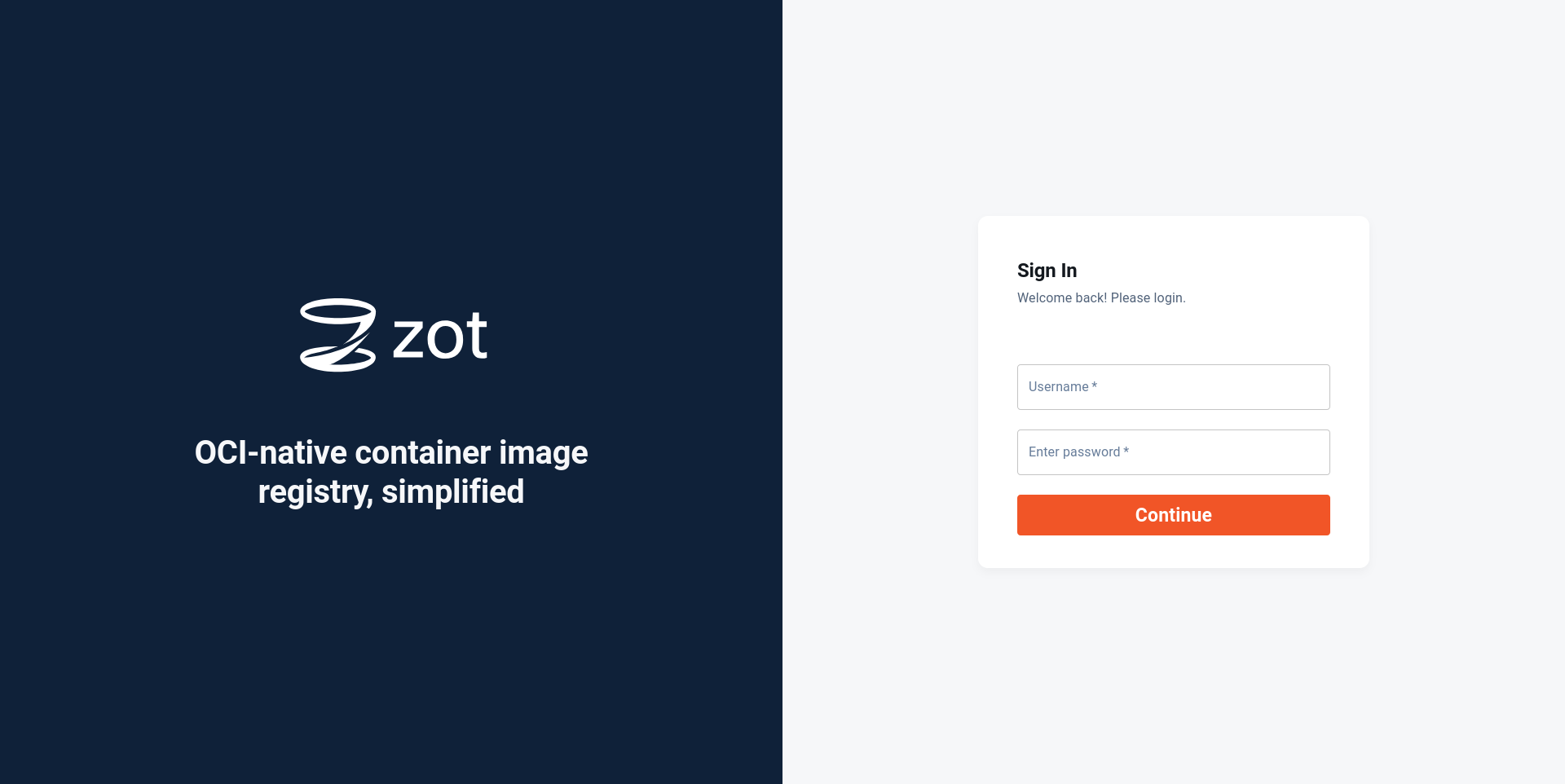
https://ZOT_MACHINE_HOST_NAME_OR_IP:8080. Replace ZOT_MACHINE_HOST_NAME_OR_IP with your machine’s host name or IP address. This should bring up a login page:
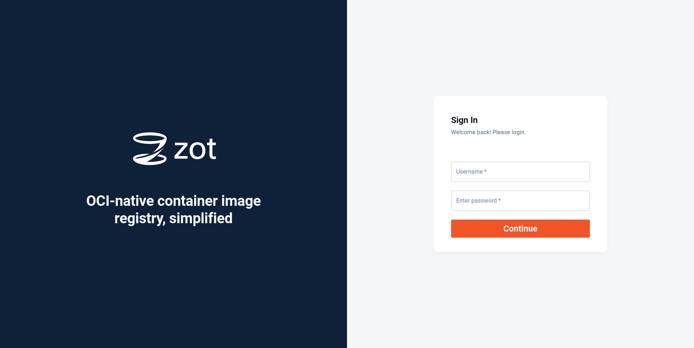
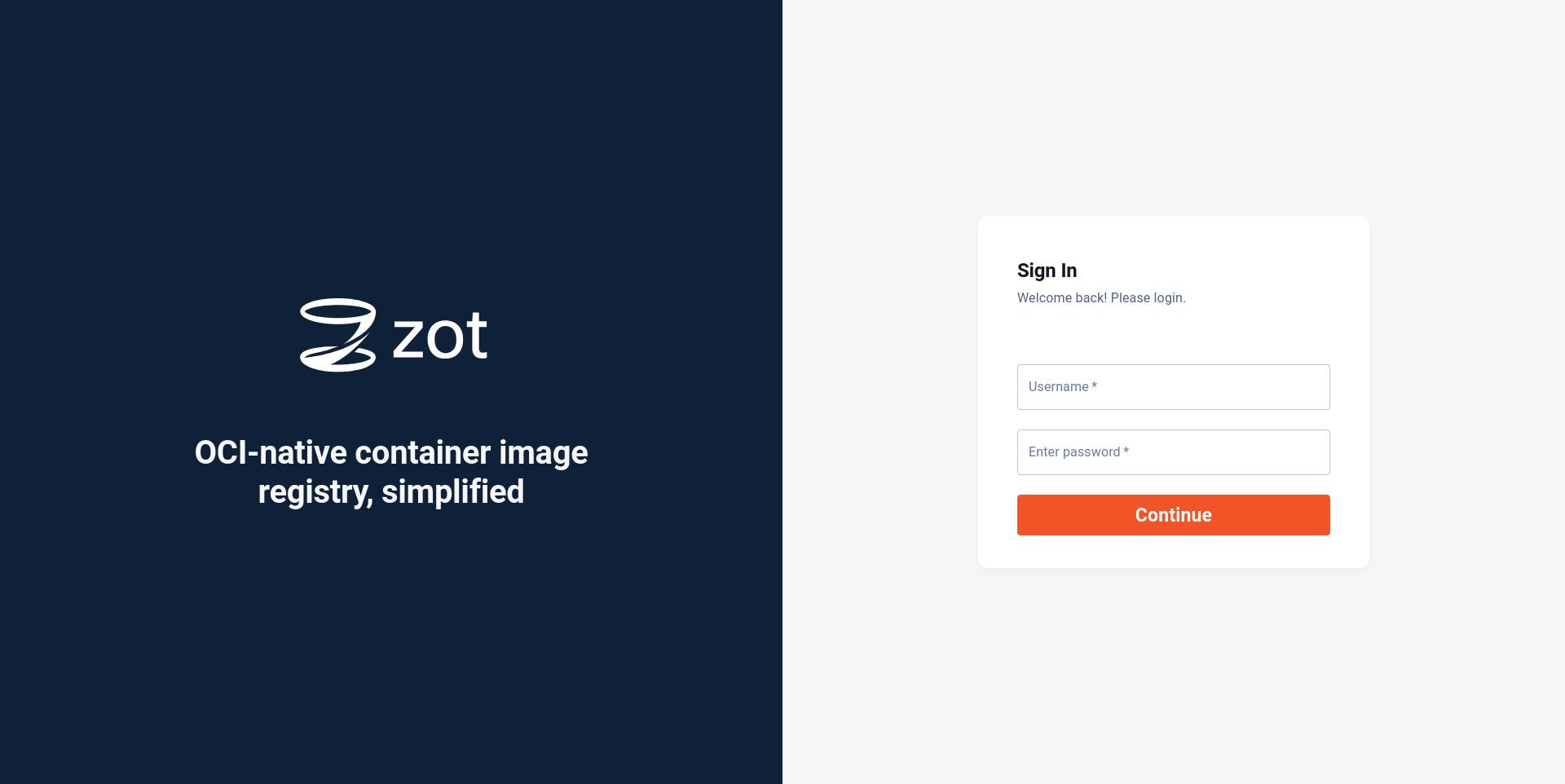
The credentials supplied for htpasswd file creation earlier can be used to login.
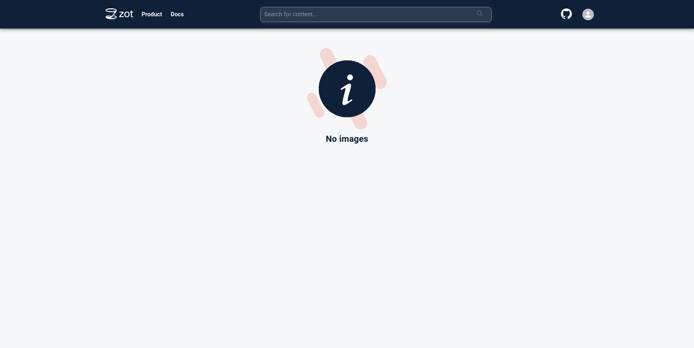
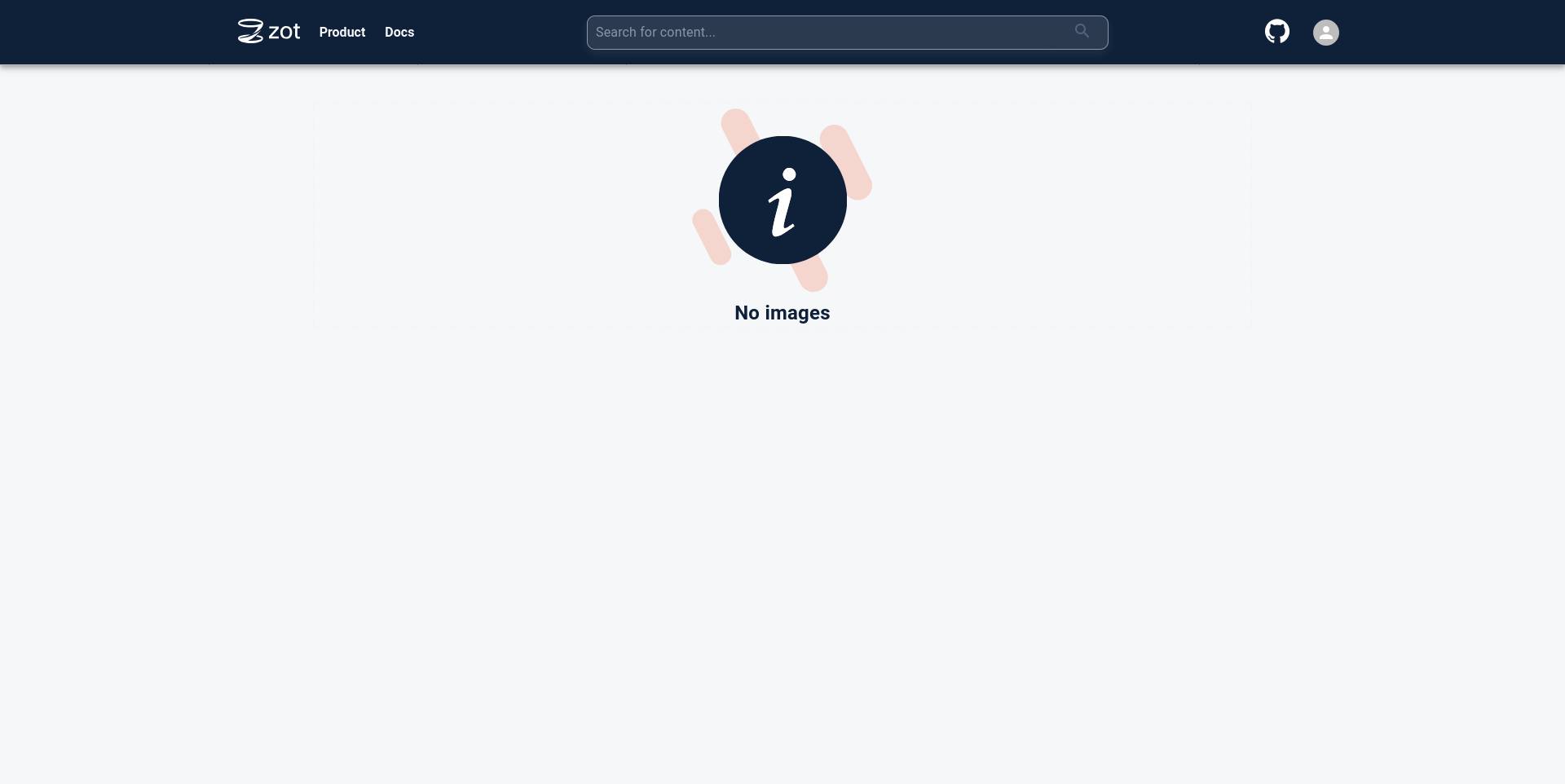
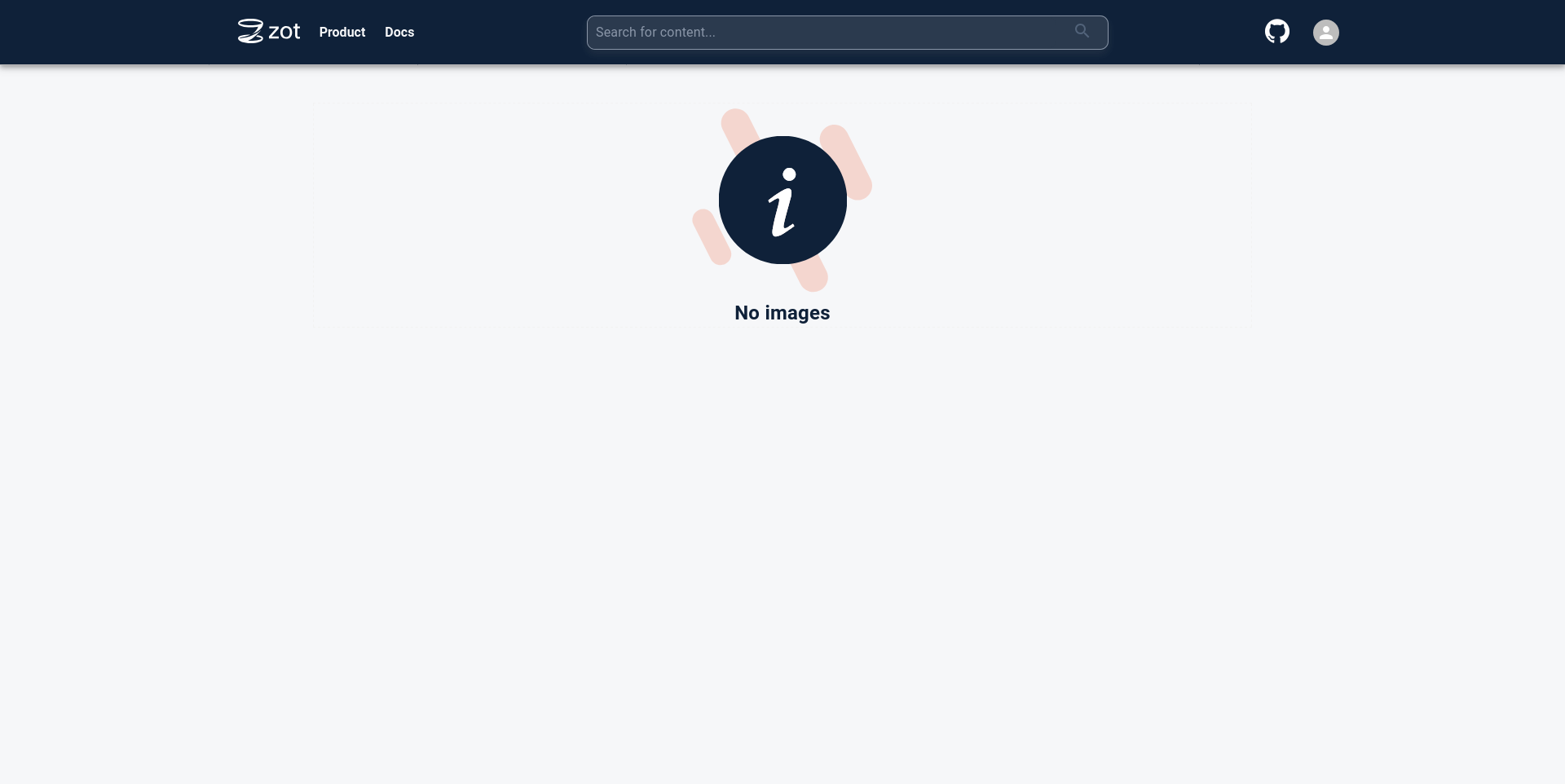
After a successful login, the homepage is displayed:
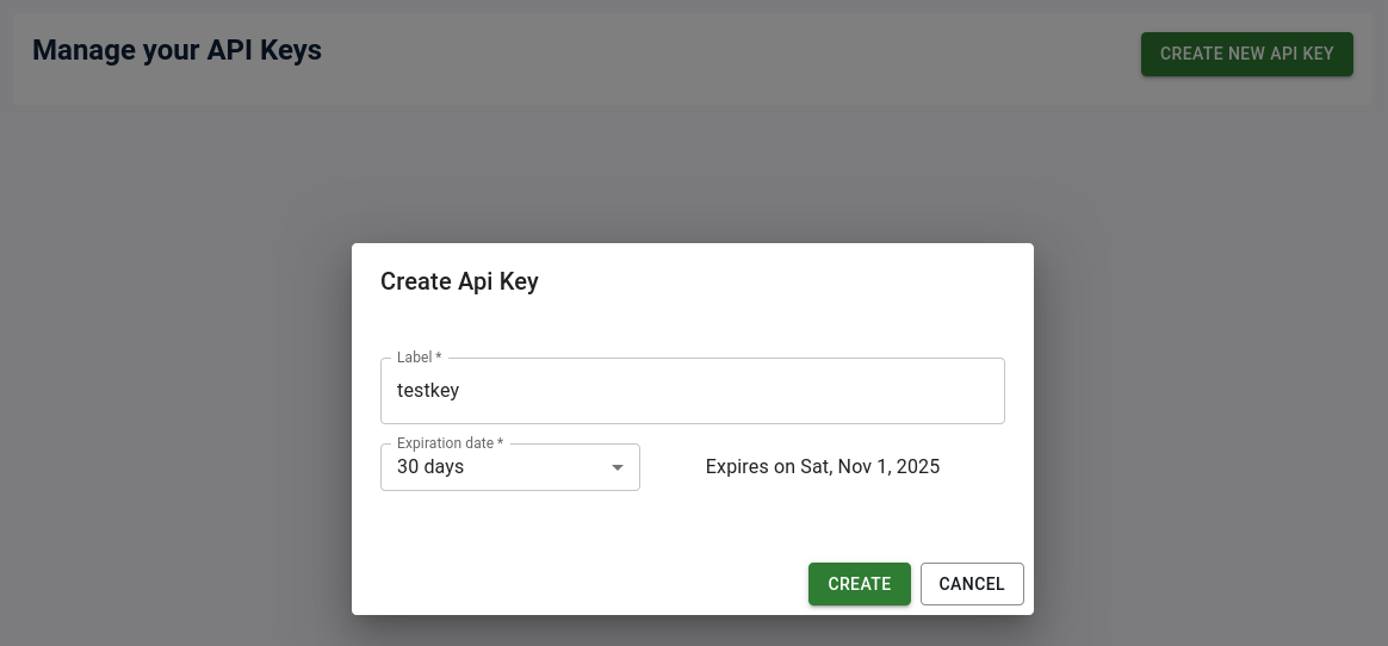
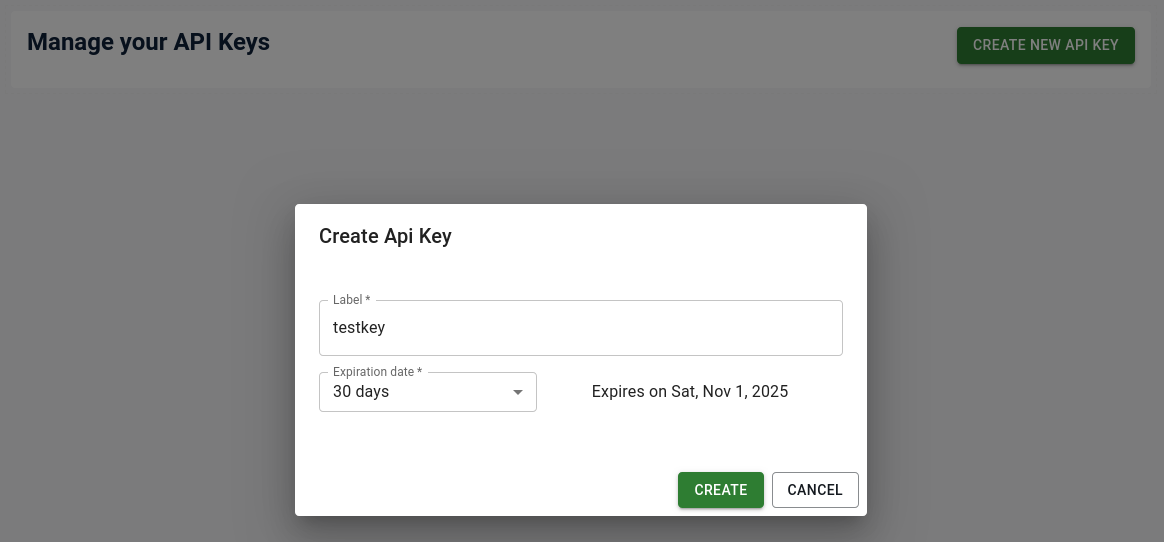
Create a Zot API Key
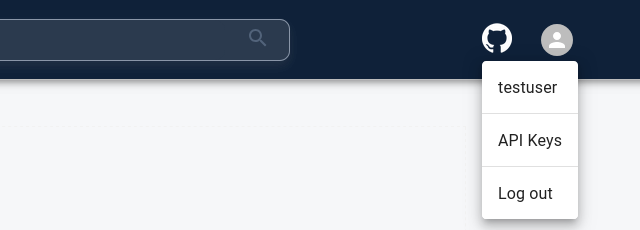
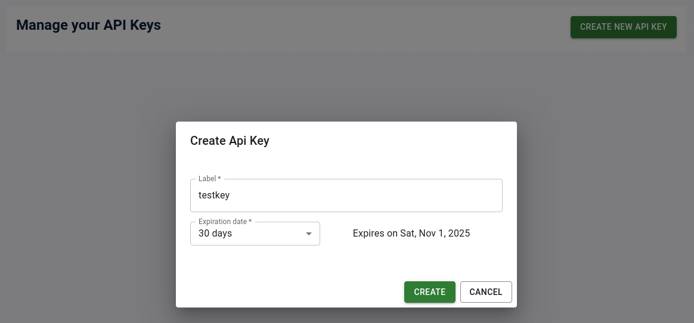
Generate an API key from within the browser UI by clicking on the User Profile icon in the top right and selecting the API Keys option:






Cache an Image from Docker Hub with Zot
This section describes how to use podman on your workstation to download an image from the Zot registry:
Log in to the registry with the Zot username configured earlier and the generated API key. Replace ZOT_MACHINE_HOST_NAME_OR_IP with your machine’s host name:
podman login ZOT_MACHINE_HOST_NAME_OR_IP:8080The following output is seen on a successful login:
Login Succeeded!Pull the image with the following command. Replace ZOT_MACHINE_HOST_NAME_OR_IP with your machine’s host name.
podman pull ZOT_MACHINE_HOST_NAME_OR_IP:8080/ubuntu:nobleWhen the image pull succeeds, the output resembles the following:
Trying to pull ZOT_MACHINE_HOST_NAME_OR_IP:8080/ubuntu:noble...
Getting image source signatures
Copying blob 953cdd413371 done   |
Copying config 6d79abd4c9 done   |
Writing manifest to image destination
6d79abd4c96299aa91f5a4a46551042407568a3858b00ab460f4ba430984f62c
When you requested this image, it was automatically downloaded and cached by Zot from Docker Hub.
View the Image and Security Scan Results in the Zot UI
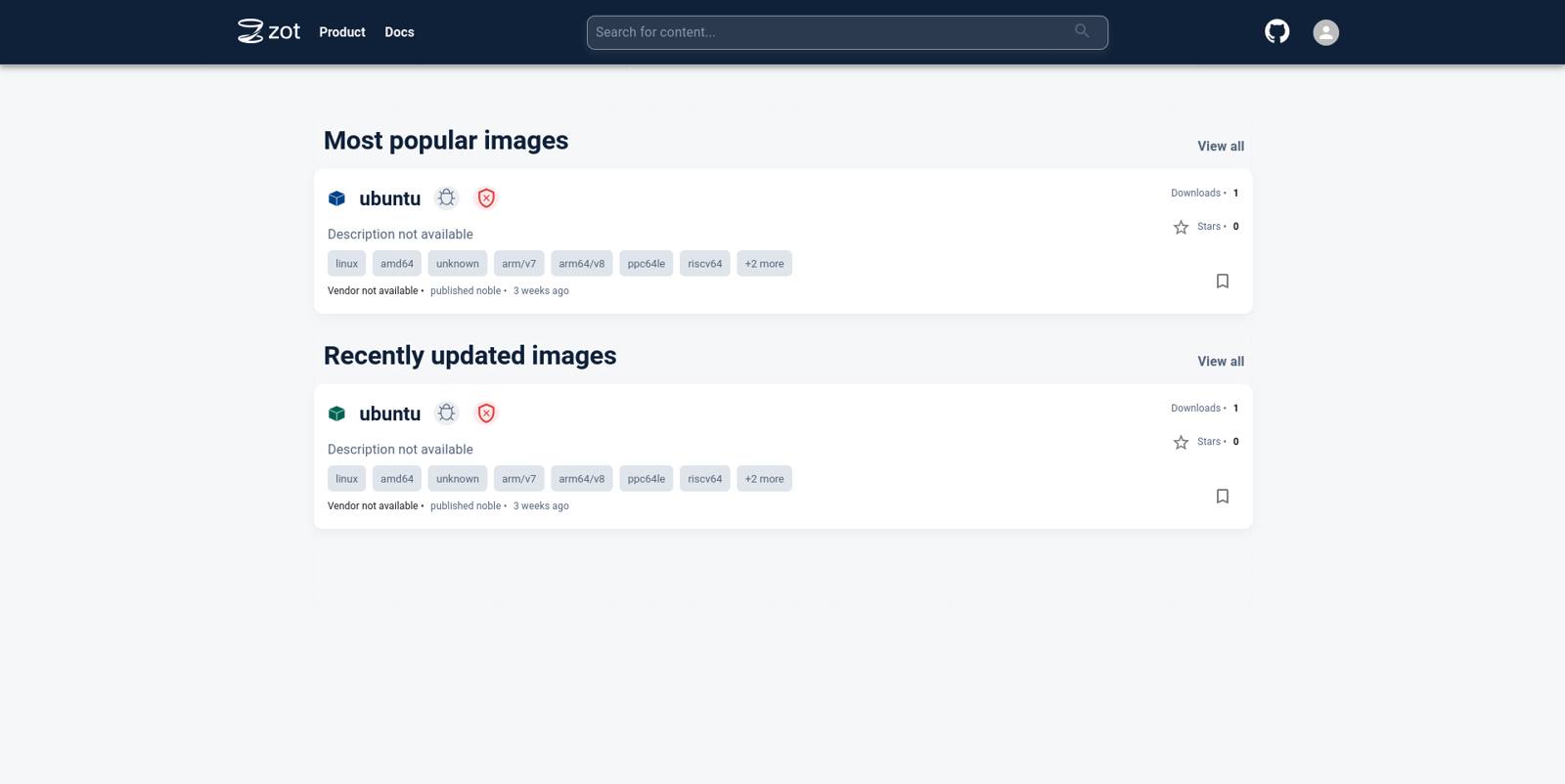
Navigate to the Zot UI in the browser. The image that was just downloaded would be listed on the home page.
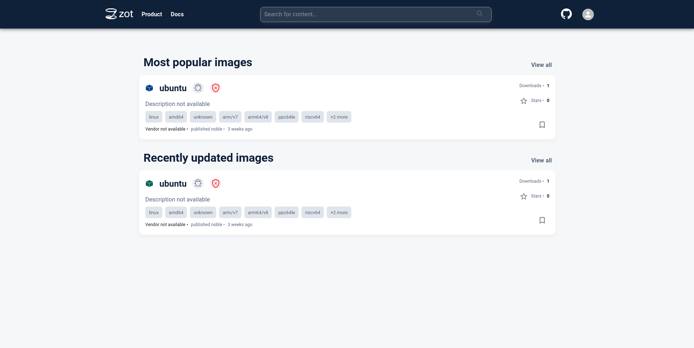
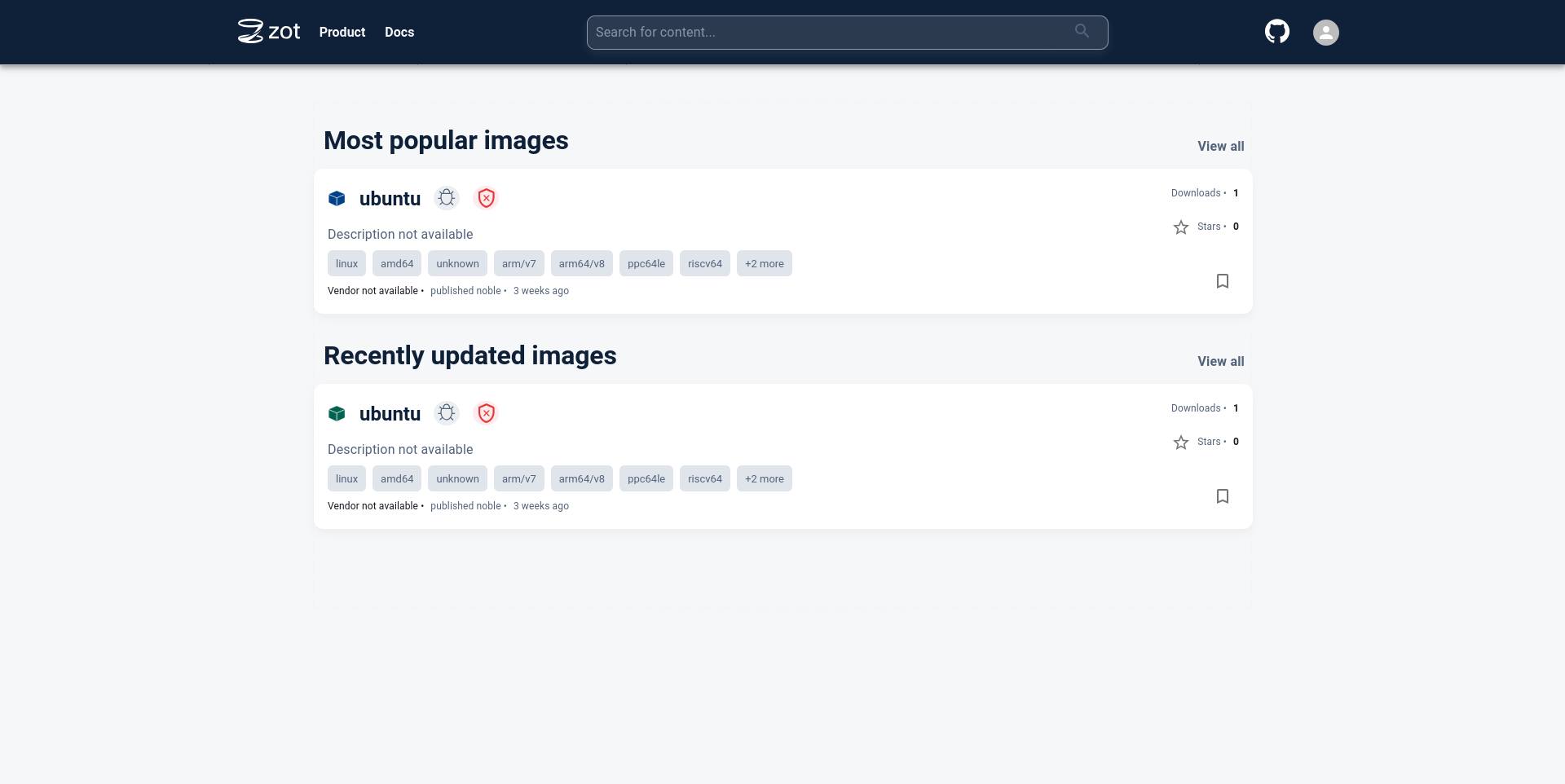
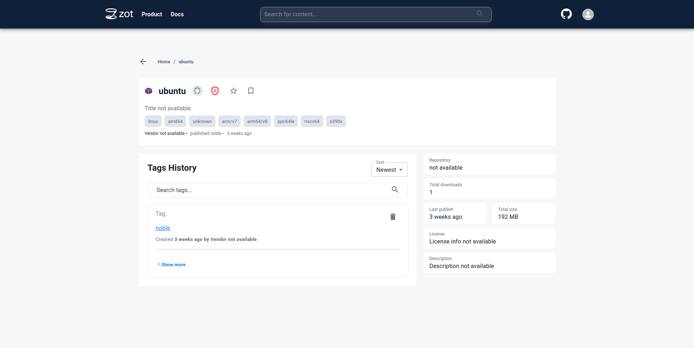
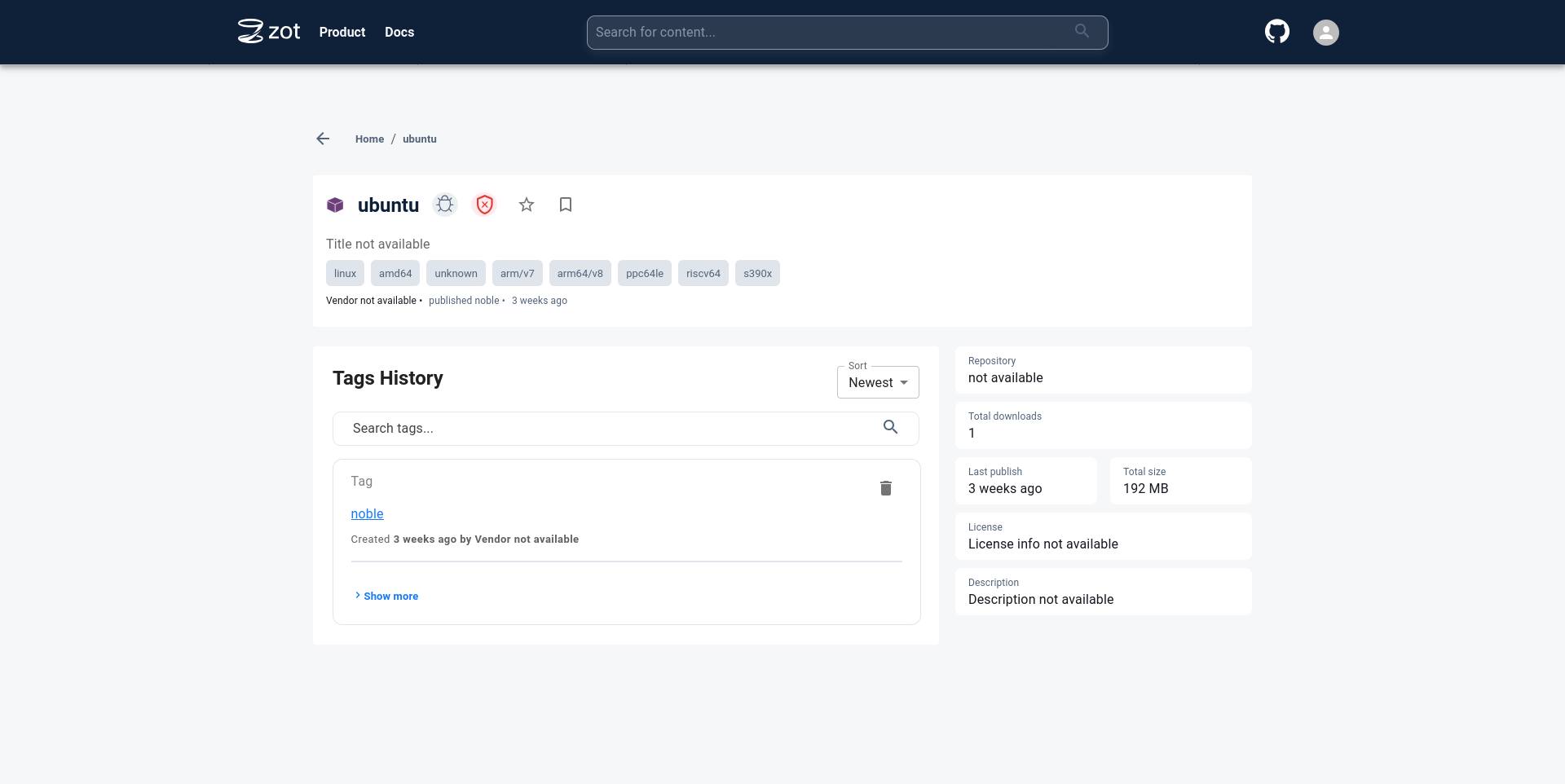
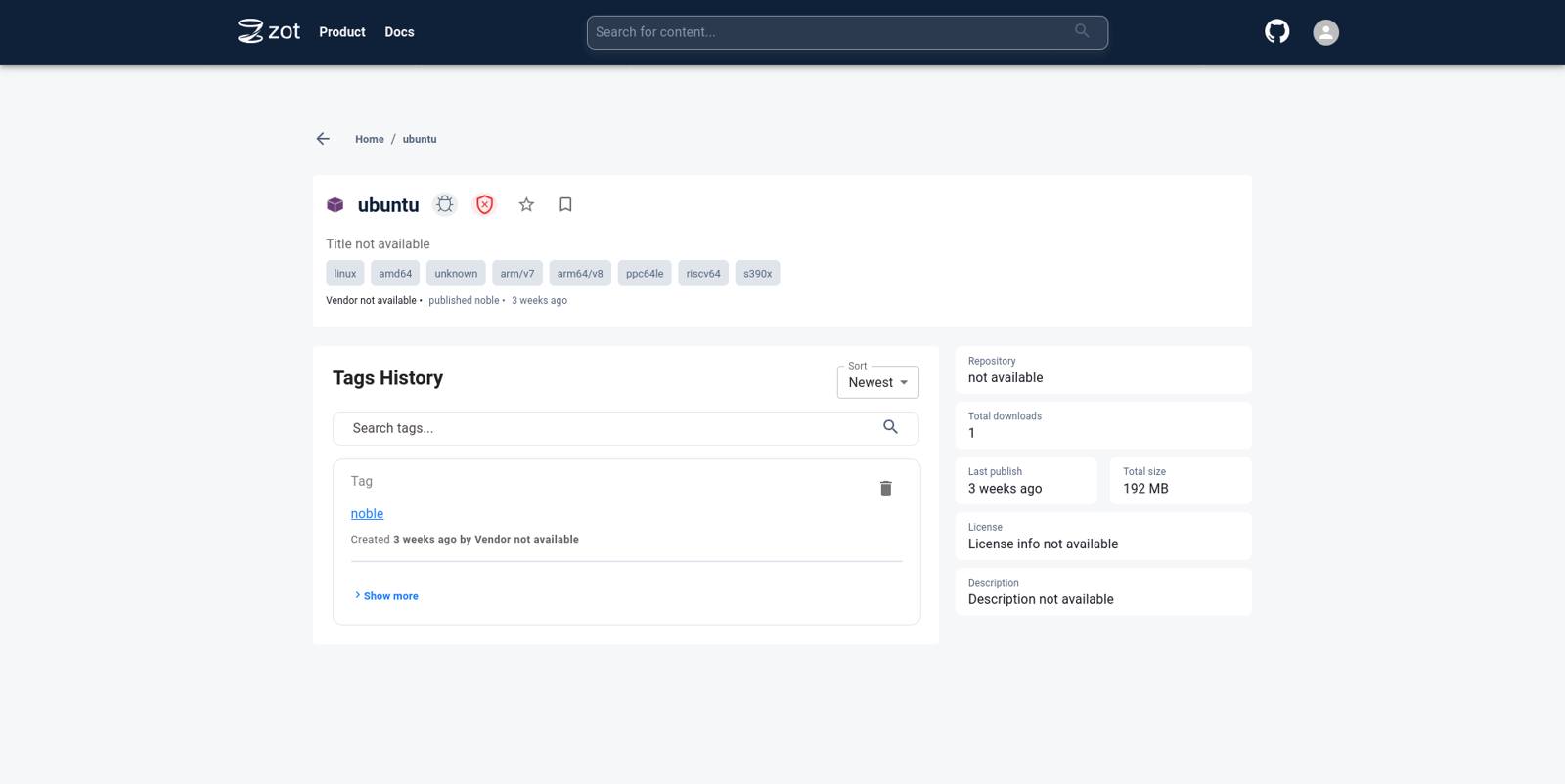
Click on the image name to see more details about the image.
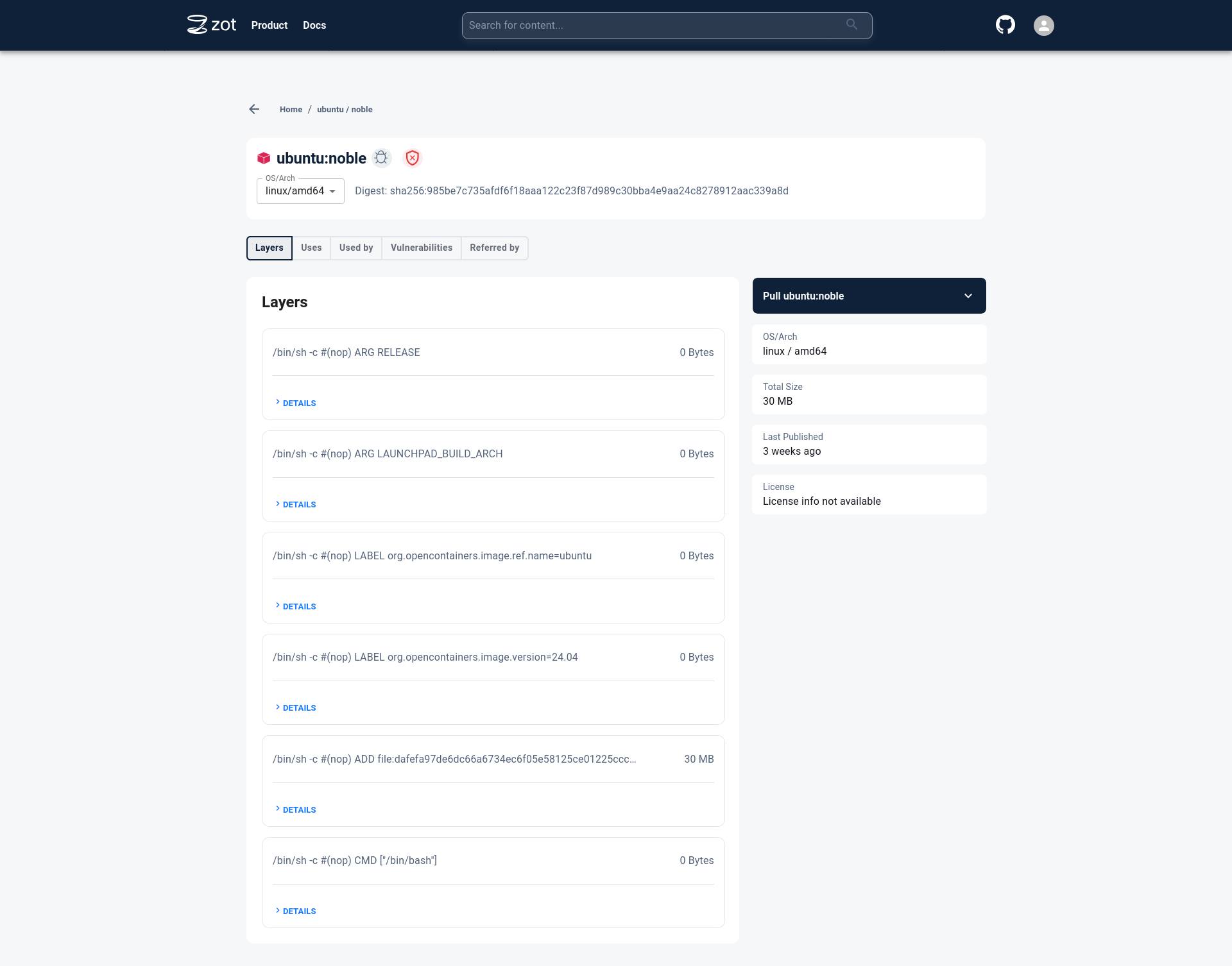
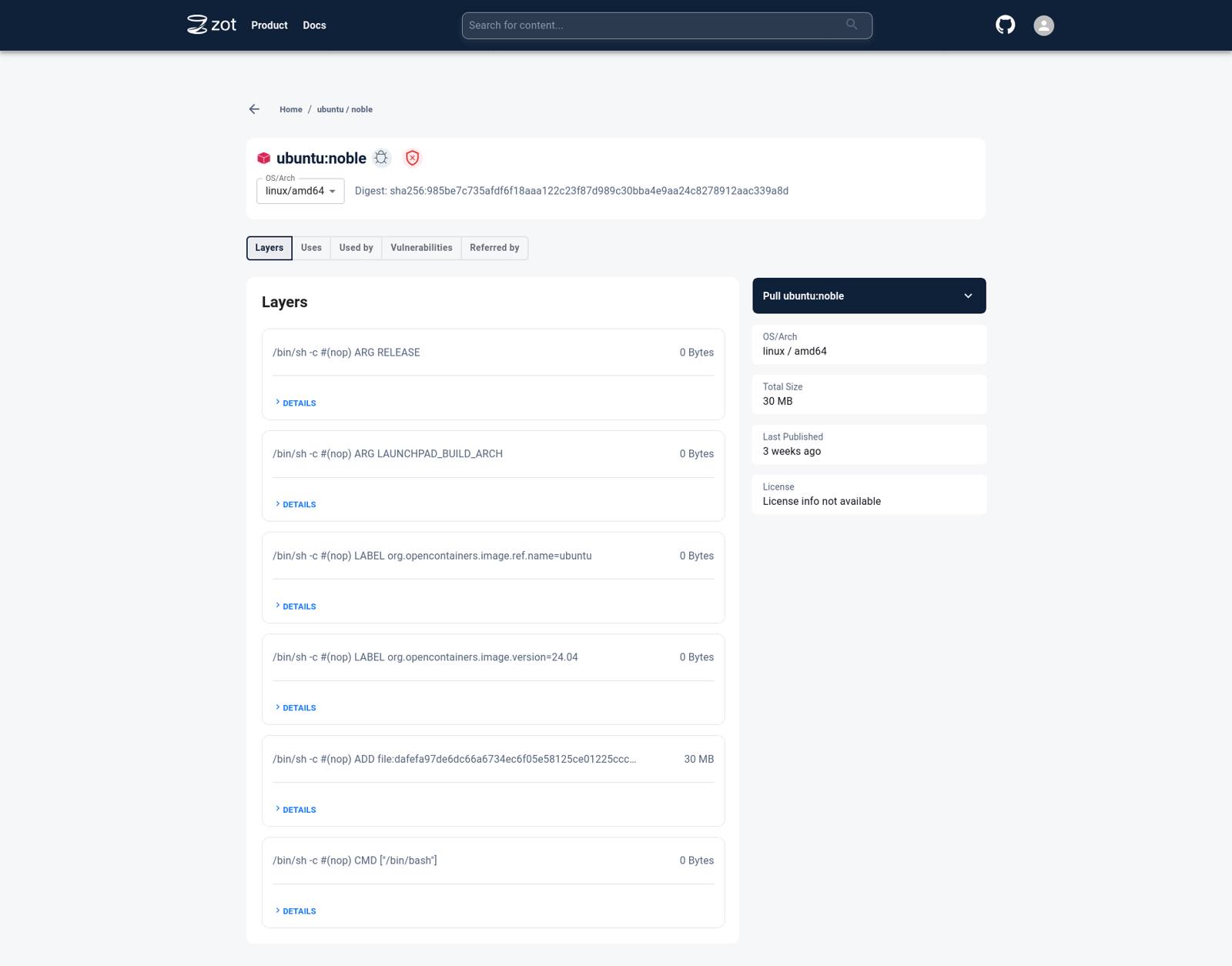
Click on the tag to see more details specific to a particular image tag.
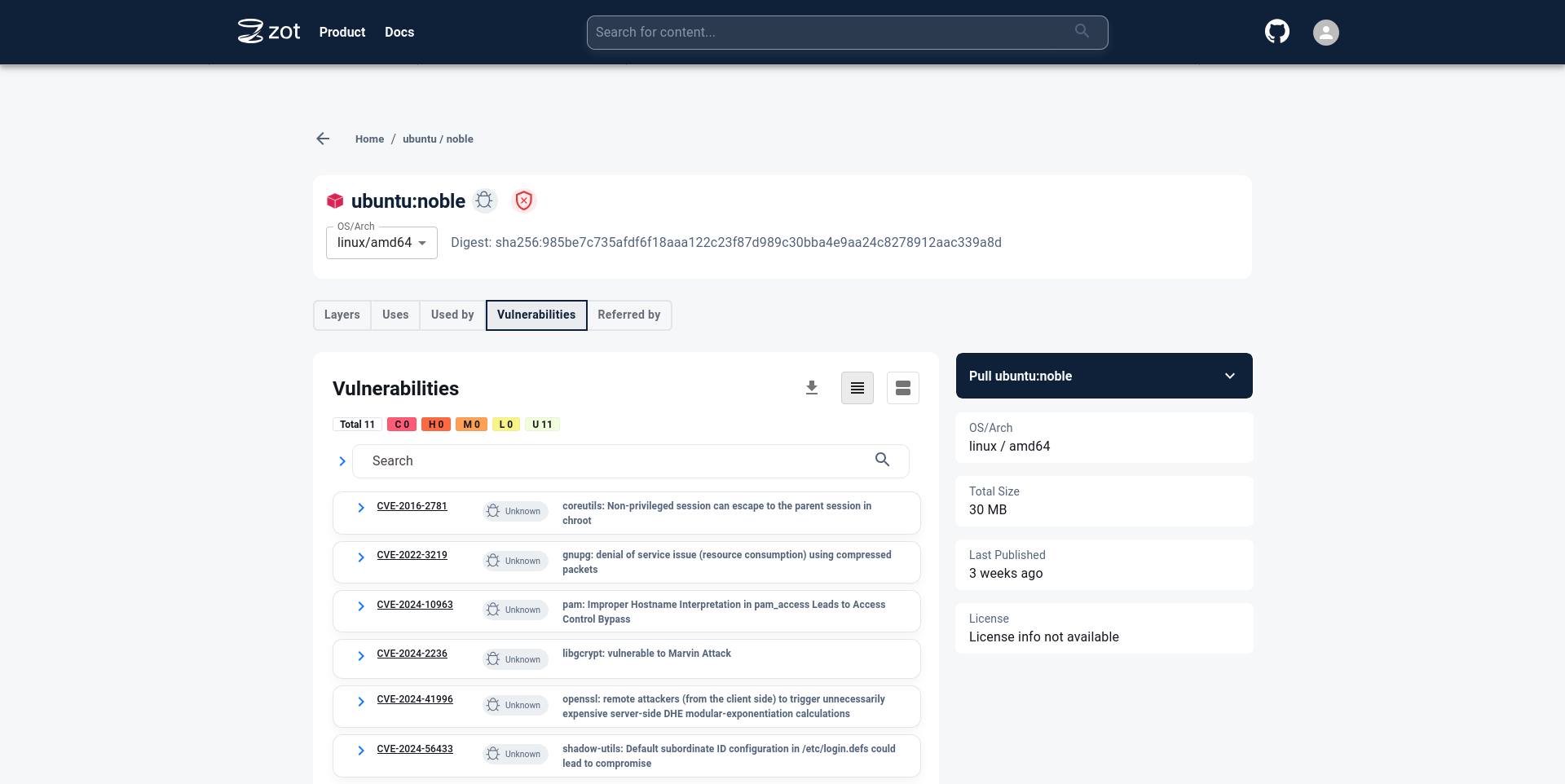
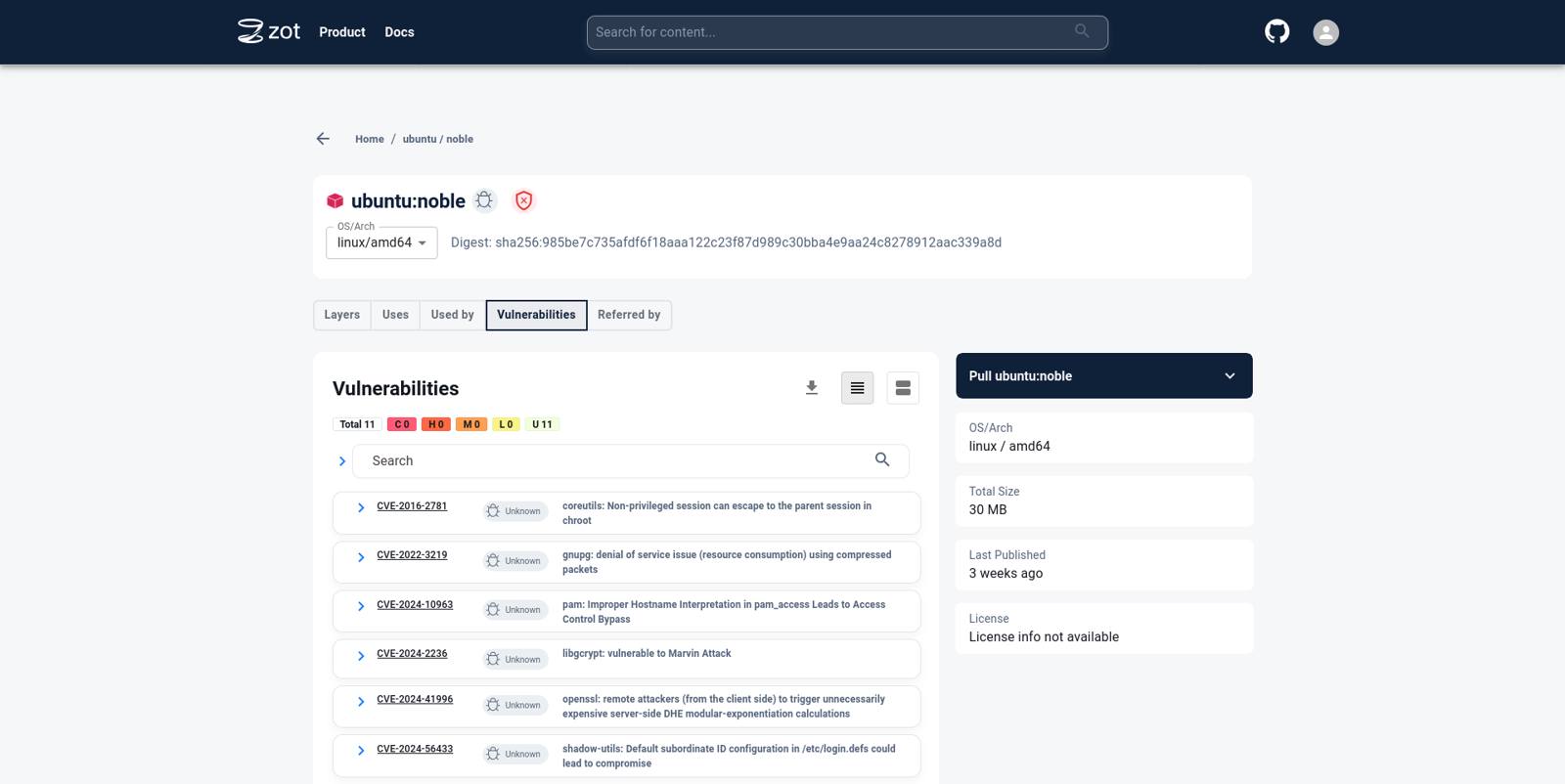
Click on the
Vulnerabilitiestab to see details about Vulnerabilities in the image.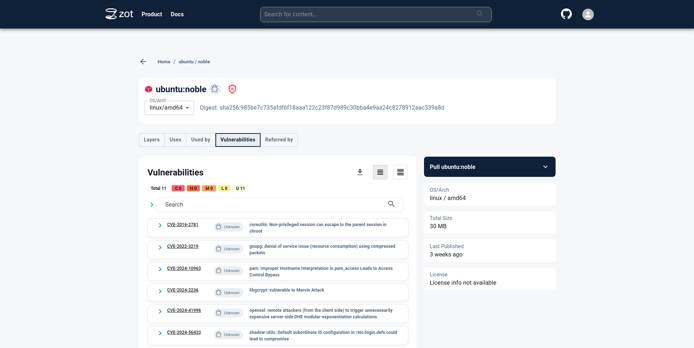
Conclusion
You have successfully self-hosted the Zot registry!
Next, navigate to the Zot documentation links below to learn more about Zot and other features that Zot supports.
More Information
You may wish to consult the following resources for additional information on this topic. While these are provided in the hope that they will be useful, please note that we cannot vouch for the accuracy or timeliness of externally hosted materials.
This page was originally published on
